How-toSoftware Tools16 min read
How to Switch to Linux in 2026: A Beginner's Guide That Avoids Regret
Windows 10 end-of-life and Windows 11 hardware requirements are pushing more people toward Linux. Here is the safe, beginner-friendly way to switch without breaking your workflow.
Omer YLD
Founder & Editor-in-Chief
16 min · 3,019 words
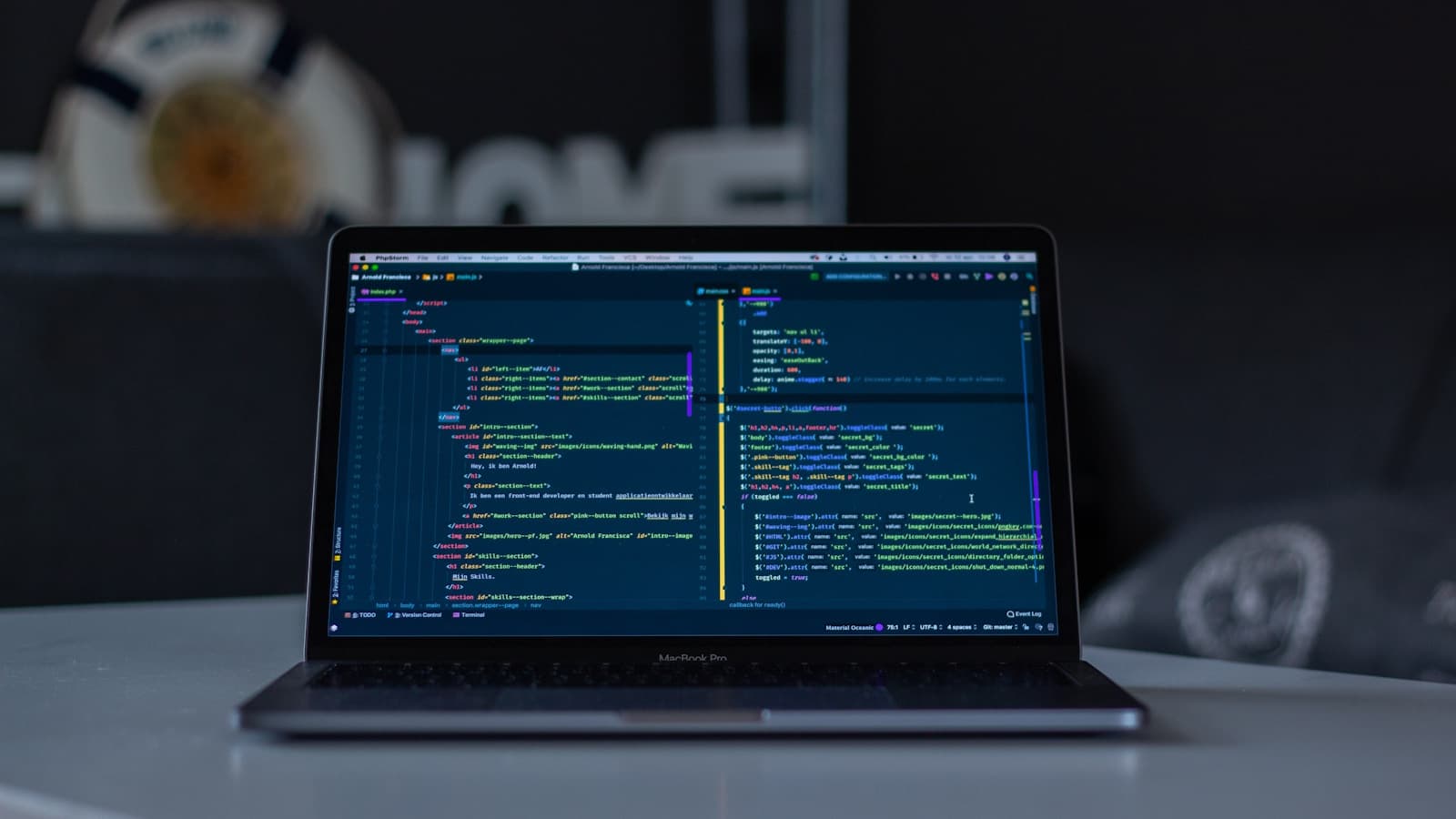
Filed from · IstanbulPhoto · Arnold Francisca / Unsplash
Linux is having a mainstream moment again. The Verge has been running a string of Linux-switching stories, including accounts of moving away from Windows and saving older laptops that Windows 11 left behind. The reason is obvious: Windows 10's end-of-life pressure, Windows 11 hardware requirements, and years of desktop Linux polish have finally met in the middle.
Switching is easier than it used to be. It is still not something you should do impulsively at midnight on your only work laptop. Linux can be a clean, fast, private, repair-friendly operating system. It can also be frustrating if you discover after the install that your fingerprint reader does not work, your employer's VPN is Windows-only, or the one game you play every night uses anti-cheat that refuses to launch.
This guide is the safe path: test first, pick a boring distribution, keep a rollback plan, and rebuild your workflow deliberately instead of trying to clone Windows one-for-one.
Who should switch to Linux in 2026?
Linux makes the most sense for four kinds of users.
First, it is excellent for people with older Windows 10 laptops that still feel physically fine but are blocked from Windows 11 by TPM, CPU, or vendor support requirements. A five-year-old ThinkPad, Dell Latitude, HP EliteBook, or older consumer laptop can still be a strong browsing, writing, coding, streaming, and school machine on Linux.
Second, Linux is a natural fit for developers and technical users. If your day involves Git, Docker, Python, Node, Rust, SSH, servers, local databases, terminals, or self-hosted tools, Linux often feels less like a compromise and more like the native environment you were trying to approximate on Windows.
Third, it works well for privacy-conscious users who are tired of account prompts, cloud nags, telemetry switches, forced app recommendations, and the slow drift of desktop operating systems into ad platforms. Linux is not automatically private if you install questionable apps, but the default posture is calmer.
Fourth, Linux is good for families who need a durable basic computer: browser, email, documents, video calls, photos, and streaming. For that use case, a stable distro and a modern browser cover most daily needs.
Who should wait? If your income depends on Adobe Premiere, AutoCAD, certain music production suites, Windows-only accounting software, a corporate endpoint security agent, or a specific multiplayer game, do not wipe Windows until you have verified a replacement workflow.
Step 01: Decide why you are switching
Step01
Write down your must-have workflow
List the apps and tasks you cannot lose: browser, email, office files, games, VPN, video calls, printer, cloud storage, password manager, tax software, and work tools.
Linux is excellent for browsing, writing, coding, self-hosting, privacy, and reviving older hardware. It is weaker if your life depends on Adobe Creative Cloud, certain Windows-only enterprise apps, or multiplayer games with strict anti-cheat.
Make a simple two-column list. On the left, write the task: "edit Word documents," "join Zoom calls," "sync OneDrive files," "play Valorant," "connect to work VPN," "print shipping labels." On the right, write the Linux answer. Some answers are easy: Chrome, Firefox, LibreOffice, OnlyOffice, Zoom, Slack, Discord, Steam, VS Code, Obsidian. Some need research: OneDrive sync, printer drivers, accounting apps, VPN clients, game launchers.
The goal is not ideological purity. The goal is a computer that works. If one critical task has no good Linux answer, keep Windows in dual-boot, use a spare machine, or run Linux in a VM until the blocker is solved.
Step 02: Choose the right distro
Step02
Pick a beginner-friendly distribution
Choose Linux Mint if you want the most Windows-like experience. Choose Ubuntu if you want maximum tutorials. Choose Fedora if you have newer hardware and want a modern desktop.
Avoid making your first Linux install an optimization exercise. Arch, NixOS, Gentoo, and ultra-minimal window-manager setups are great for the right person. That person is usually not someone trying to rescue a family laptop before Windows 10 support ends.
For most beginners, Linux Mint Cinnamon is the easiest landing zone. The desktop layout is familiar, the update tools are friendly, multimedia support is straightforward, and the community is full of people answering beginner questions without assuming you already know the command line.
Ubuntu is the documentation king. If you search a problem, there is probably an Ubuntu answer, a forum post, or a Stack Overflow thread. Ubuntu's default GNOME desktop feels less Windows-like, but it is polished and widely supported by commercial apps.
Fedora Workstation is the best mainstream pick for newer laptops and users who want a cleaner, more current desktop without living on the bleeding edge. It often gets newer kernels and graphics support sooner than long-term-support distributions.
Pop!_OS remains worth considering if you have an NVIDIA laptop or want a developer-friendly desktop, though its best fit depends on the current state of System76's desktop transition. Zorin OS is another good Windows-like option for non-technical users, especially if visual familiarity matters.
Tip
The beginner distro rule
If you cannot explain why you need a niche distro, you probably do not need it yet. Start with Mint, Ubuntu, or Fedora. You can always move later.
Step 03: Back up before touching partitions
Step03
Make two backups
Back up your files to an external drive and to a cloud service. Confirm you can open the backup before installing anything.
Do not trust yourself to remember every important folder. Export browser bookmarks, password-manager recovery info, email archives if needed, game saves, tax documents, photos, music projects, invoices, school folders, SSH keys, and work files. If you use Outlook, export what you need. If you use a password manager, make sure you know how to sign in from a clean browser on another device.
If BitLocker is enabled on Windows, save the recovery key before changing partitions. You can usually find it in your Microsoft account, but do not assume you will have access when the machine is half-reinstalled. Also create a Windows recovery USB before you begin. Even if you never use it, having a rollback option lowers the stress level dramatically.
For photos and documents, a 3-2-1 backup approach is ideal: three copies of important data, on two different media, with one copy off-site. For a home user, that can mean the original laptop, an external SSD, and a cloud backup.
Step 04: Test from a live USB
Step04
Boot Linux without installing
Use Balena Etcher, Rufus, or Fedora Media Writer to create a bootable USB. Start the live session and test hardware before installing.
A live USB is Linux's best beginner feature. It lets you boot the operating system without erasing Windows. Performance will be slower than a real install because it is running from USB, but hardware compatibility checks are still useful.
Check these before you commit:
- Wi-Fi connects and stays connected
- Bluetooth pairs headphones, a mouse, or a keyboard
- Trackpad gestures feel acceptable
- Sleep and wake work reliably
- External monitor output works over HDMI, USB-C, or a dock
- Webcam and microphone work in a browser
- Display scaling is readable on high-DPI screens
- Keyboard brightness and volume keys work
- Audio switches correctly between speakers and headphones
- Printer or scanner support is at least discoverable
- Battery reporting looks normal
If a laptop fails several of these, try a different distro before installing. Newer kernels can make a big difference, which is why Fedora may work better than Mint on brand-new hardware, while Mint may feel smoother on older mainstream laptops.
Step 05: Decide between dual-boot and replacing Windows
Step05
Choose an install strategy
Dual-boot if you are unsure, replace Windows if you already tested everything, or use a spare laptop if the machine is mission-critical.
There are three safe approaches.
Dual-boot keeps Windows and Linux on the same machine. You choose which one to start at boot. This is the safest route if you have one or two Windows-only tasks. The downside is partition complexity and occasional bootloader maintenance after major Windows updates.
Full replacement wipes Windows and gives the whole drive to Linux. This is cleaner, simpler, and often best for old laptops where Windows is no longer needed. Do this only after backups, live-USB testing, and app checks.
Spare-machine migration is the calmest path. Install Linux on an older laptop first, use it for a week, then decide whether your main machine should switch.
Heads up
Do not erase Windows on day one if this is your work machine
Dual-boot or use a spare laptop first. The fastest way to hate Linux is to discover one mandatory work tool fails after you already wiped Windows.
Step 06: Install Linux carefully
Most beginner-friendly distros have good installers, but read each screen instead of clicking through. If you are dual-booting, choose the option to install alongside Windows when available. If you are replacing Windows, confirm your backups before selecting erase-disk options.
Use full-disk encryption if the laptop travels, stores work files, or contains personal documents. Encryption protects your data if the laptop is stolen. The tradeoff is responsibility: if you forget the encryption password, your data is gone.
Create a normal user account, not a root login. Choose a strong password. After first boot, install updates before customizing anything. Updates may pull newer drivers, browser patches, firmware improvements, and security fixes.
Step 07: Install your core apps
Step07
Rebuild your workflow, not your old OS
Install your browser, password manager, office suite, chat apps, media tools, and backup service. Use native Linux apps first, web apps second, compatibility layers last.
The beginner mistake is trying to recreate Windows exactly. Use Linux-native tools where possible: Firefox or Chrome, LibreOffice or OnlyOffice, Thunderbird, Obsidian, VS Code, Steam, VLC, Signal, Discord, Slack, Zoom, GIMP, Krita, and your password manager's official Linux app or browser extension.
For office work, test your real documents. Open a complex Word file, a spreadsheet with formulas, and a presentation you actually use. LibreOffice is powerful, but Microsoft Office compatibility is not perfect. If formatting fidelity matters, Microsoft 365 in the browser or OnlyOffice may be a better daily answer.
For cloud storage, Dropbox and Google Drive workflows vary by distro and desktop. OneDrive often requires third-party clients or browser-first behavior. Do not assume sync works the same way it did on Windows.
Step 08: Set up updates, drivers, and backups
Linux updates are usually less dramatic than Windows feature upgrades, but you still need a routine. On Mint and Ubuntu, use the graphical update manager. On Fedora, use GNOME Software or dnf if you are comfortable in the terminal. Install firmware updates when offered through the system tools.
If you have NVIDIA graphics, install the recommended proprietary driver from your distro's driver manager or documentation. Do not copy random terminal commands from old forum posts unless you understand them. NVIDIA support on Linux is much better than it used to be, but driver mismatches can still create black screens, sleep issues, or poor performance.
Set up backups immediately. Timeshift is useful for system snapshots on many desktop distros, but it is not a complete personal-file backup by itself. Pair it with cloud backup, an external drive, or a tool like Deja Dup, Restic, or Borg depending on your comfort level.
Gaming on Linux in 2026
Linux gaming is no longer a punchline. Steam Deck changed expectations, and Proton has made thousands of Windows games playable on Linux. If your library is mostly single-player Steam games, indie games, emulators, and controller-friendly titles, you may be surprised by how little you miss Windows.
Still, check before switching. ProtonDB is the practical source for Steam compatibility reports. Look up your top ten games, not just one. Pay special attention to multiplayer games with anti-cheat. Some work. Some do not. Some work today and break after an update.
For non-Steam launchers, tools like Heroic Games Launcher and Lutris can help with Epic, GOG, and other libraries, but they add complexity. If gaming is your main use case and you play competitive titles, dual-boot is still the safer setup.
Printers, scanners, docks, and weird hardware
The least glamorous hardware is often what breaks a migration. Printers may work instantly through driverless printing, or they may require vendor tools. Scanners can be fussier. USB-C docks depend on firmware, DisplayLink support, monitor configuration, and power delivery behavior. Fingerprint readers are inconsistent. Some Windows Hello cameras are not useful on Linux.
Before replacing Windows, test the boring peripherals. Print a page. Join a video call. Connect the external monitor. Plug into the dock. Scan a document. Pair the Bluetooth headphones. Close the lid, wait five minutes, open it, and see whether Wi-Fi returns.
These details decide whether Linux feels like freedom or a weekend project that never ends.
Security basics after switching
Linux is not magic armor. It has fewer consumer malware problems than Windows, but bad habits still matter. Keep updates enabled. Install apps from your distro's software center, Flatpak, Snap, or official vendor repositories when possible. Avoid curl-to-shell install commands unless they come from a trusted project and you understand what they do.
Use a password manager. Turn on browser sync only if you trust that account. Keep your system password strong. If you enable SSH, use keys and disable password login if the machine is reachable from the network. Do not run random scripts as root because a forum answer told you to.
For banking and sensitive work, a mainstream updated Linux distro with a current browser is safe. The bigger risks are phishing, malicious browser extensions, weak passwords, and downloading untrusted software.
What Linux does better
Linux is faster on many older machines, less noisy about accounts and ads, excellent for development, and more transparent about updates. It also gives you more control over privacy and background services.
For laptops stranded by Windows 11 requirements, Linux can turn "obsolete" hardware into a perfectly good web, writing, coding, or media machine. The system also respects tinkering. You can keep it simple for years or slowly learn the terminal, package management, shell scripting, containers, and server administration.
That learning path is one of Linux's hidden strengths. A user who starts by reviving an old laptop may end up understanding computers better than they ever did under Windows.
What Linux still does worse
Some hardware vendors treat Linux as an afterthought. Fingerprint readers, unusual webcams, printer utilities, and battery optimization can be hit or miss. Commercial creative apps are still the biggest gap. And while gaming has improved dramatically, anti-cheat remains the stubborn exception.
Support can also feel fragmented. On Windows, you search for a Windows answer. On Linux, the answer may depend on distro, desktop environment, kernel version, package format, graphics stack, and whether the person replying is assuming you use the terminal. That flexibility is powerful, but it can overwhelm beginners.
The fix is to stay mainstream at first. Use a popular distro. Install software through official channels. Make one change at a time. Keep notes when you solve a problem.
A realistic first-week checklist
Day one: install updates, sign in to your browser, install your password manager, confirm Wi-Fi and audio, set up backups, and open your important files.
Day two: test video calls, printer, scanner, external monitor, VPN, and cloud storage. Do not wait until a deadline.
Day three: install Steam and test your top games. Check controller support if you play from the couch.
Day four: customize the desktop lightly. Change shortcuts, dock behavior, theme, and default apps, but avoid deep system tweaks until you know the baseline is stable.
Day five: use Linux for a full workday. Keep a note of every friction point. Most will be solvable; a few may tell you to keep Windows available.
Day six and seven: decide whether Linux is your main OS, a dual-boot companion, or a great way to keep an older laptop useful.
FAQ
Will Linux make my old laptop faster?
Often, yes — especially if the laptop is slowed by Windows background services. Use a lightweight desktop like Linux Mint Cinnamon, Xfce, or a mainstream distro with modest visual effects for older machines.
Can I go back to Windows?
Yes, if you made backups and created Windows recovery media before switching. Do that first. If you dual-booted, you can keep Windows available while you test Linux.
Is Linux safe for banking?
A fully updated mainstream Linux distro is safe for normal banking. Use a supported browser, keep updates enabled, avoid suspicious extensions, and do not install random scripts from the internet.
Can Linux run Microsoft Office?
The desktop Microsoft Office apps are not officially native on Linux. Use Microsoft 365 in the browser, LibreOffice, OnlyOffice, or keep Windows available if exact Office compatibility is mandatory.
Do I need to use the terminal?
Not for basic browsing, writing, email, updates, and app installs on beginner-friendly distros. You will eventually see terminal commands in support forums, but Linux Mint, Ubuntu, and Fedora can be used mostly through graphical tools.
Switching to Linux in 2026 is no longer a stunt. It is a practical option — if you test hardware, protect your files, and choose the boring distro first. The best switch is not the fastest one. It is the one where your laptop still does everything you need a week later.
— ∎ —
Was this piece worth your five minutes?
Join the conversation — sign in to leave a comment and engage with other readers.
Loading comments...
More from Software Tools
All Software Tools coverage →Software Tools