
Best USB-C Hubs and Docking Stations 2026: Buyer's Guide
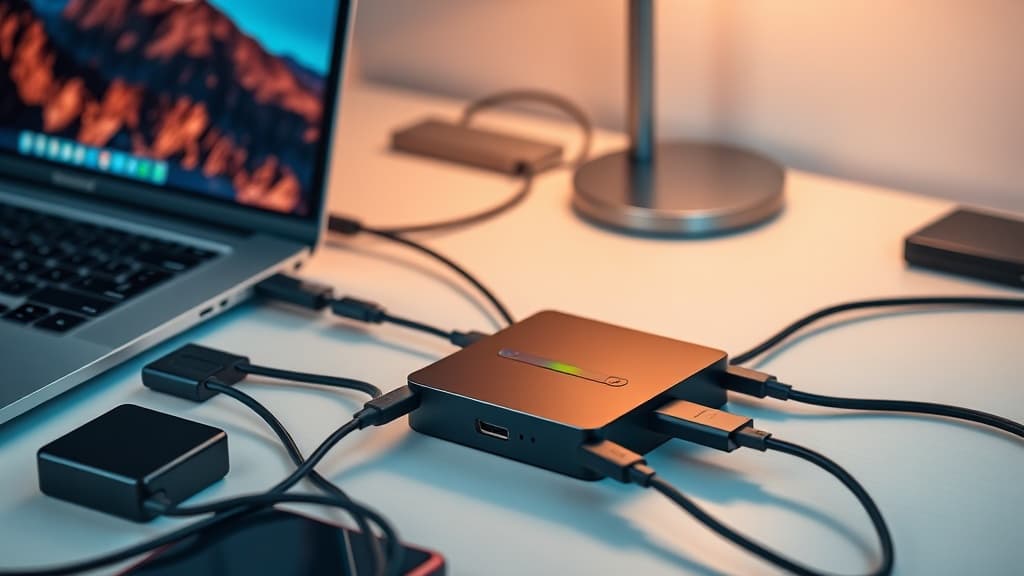
We tested over 20 USB-C hubs and docking stations to find the best options for every budget and use case in 2026. From budget travel hubs to Thunderbolt 5 docks that drive dual 8K displays, here are our top picks.
A
admin
April 8, 2026 · 12 min read
accessories
Why You Need a Good Hub in 2026
Modern laptops are thinner and lighter than ever, and that has come at the cost of ports. Even premium machines from Apple, Dell, and Lenovo ship with two to four USB-C or Thunderbolt ports and nothing else. If you need to connect an external monitor, a wired keyboard, a USB-A flash drive, an SD card reader, and an Ethernet cable, you need a hub or dock.
The market has also shifted meaningfully in 2026. Thunderbolt 5 docks are now shipping from major manufacturers, offering 120 Gbps of bandwidth that can drive dual 8K displays and multiple high-speed NVMe drives simultaneously. At the same time, budget USB-C hubs have gotten remarkably capable, with models under $40 offering 4K 60Hz HDMI, 100W power delivery, and Gigabit Ethernet.
We tested over 20 hubs and docking stations across price points, connecting them to MacBooks, Windows ultrabooks, and Chromebooks. We measured display output quality, power delivery accuracy, data transfer speeds, thermal performance, and build quality. Here are the ones worth buying.
Best Overall USB-C Hub: Anker 555 8-in-1
Price: ~$36-40 | Ports: HDMI (4K 60Hz), USB-C (10 Gbps), 2x USB-A (5 Gbps), Gigabit Ethernet, SD, microSD, USB-C PD (85W passthrough)
The Anker 555 has been our top overall pick since its release, and it continues to earn that spot in 2026. It covers every port most people need in a compact, well-built aluminum body that fits easily in a laptop bag.
In our testing, the 4K 60Hz HDMI output was clean and stable across every laptop we tried. The 85W power delivery passthrough kept our MacBook Pro 14 and Dell XPS charged while driving a monitor and peripherals. The USB-A ports handle keyboards, mice, and flash drives without issues, and the SD card reader reads at full UHS-II speeds.
What sets the Anker 555 apart from cheaper hubs is reliability. We have been using one daily for over a year, and it has never dropped a display connection, failed to charge, or required a replug. At under $40, it is exceptional value.
Who it is for: Anyone who needs a versatile, portable hub for travel or a simple desk setup with one external monitor.
Best Thunderbolt 5 Dock: CalDigit TS5 Plus
Price: ~$500 | Ports: 20 total including 3x Thunderbolt 5 downstream (80 Gbps each), 6x USB-A (10 Gbps), 4x USB-C (10 Gbps), 10GbE, SD UHS-II, microSD UHS-II, 3.5mm audio in/out, 140W host charging
The CalDigit TS5 Plus is the dock you buy when you want to turn your laptop into a full desktop workstation with a single cable. Plug in one Thunderbolt 5 cable and you get dual 8K 60Hz display output, 10 Gigabit Ethernet, 20 ports, and 140W of charging power delivered to your laptop.
We tested the TS5 Plus with a MacBook Pro M4 Max and a Dell XPS with Intel Core Ultra, and it performed flawlessly on both platforms. Dual 4K 120Hz monitors ran without a hitch. File transfers to an external NVMe enclosure connected through one of the downstream Thunderbolt 5 ports hit 5.8 GB/s, which is close to the theoretical maximum.
The build quality is exceptional: a heavy aluminum chassis that stays cool under load, a braided 1-meter cable that feels premium, and a 330W power supply that ensures the dock itself never becomes a power bottleneck. CalDigit has also earned a reputation for driver stability, which matters more than specs when you plug and unplug a dock daily.
The $500 price is significant, but if you work with large files, need 10GbE networking, or drive multiple high-resolution displays, the TS5 Plus pays for itself in convenience.
Who it is for: Professionals who need maximum connectivity, dual high-res displays, and fast networking from a single cable.
Best Budget Hub: UGREEN Revodok 105 5-in-1
Price: ~$12-15 | Ports: HDMI (4K 30Hz), 2x USB-A (5 Gbps), USB-C PD (100W passthrough), USB-C data (5 Gbps)
If you need a hub and you need it cheap, the UGREEN Revodok 105 is genuinely hard to beat. At under $15 on most days, it provides the basics: an HDMI port for an external monitor, two USB-A ports for peripherals, a USB-C data port, and 100W power delivery passthrough.
The trade-off for the low price is the HDMI output is limited to 4K at 30Hz. For presentations, basic external monitor use, and non-demanding workflows, 30Hz is acceptable. For anything where smooth scrolling or mouse movement matters (design work, coding with lots of text), you will want 60Hz, which means stepping up to the Anker 555 or similar.
Build quality is plastic but sturdy enough for travel, and the cable length is adequate for most laptop placements. We used this hub for three months as a travel-only accessory and it never failed on us.
Who it is for: Students, occasional travelers, or anyone who needs a minimal hub without spending more than lunch money.
Best for MacBook Users: CalDigit Element 5 Hub
Price: ~$250 | Ports: 1x Thunderbolt 5 upstream, 3x Thunderbolt 5 downstream (80 Gbps each), 2x USB-C (10 Gbps), 3x USB-A (10 Gbps)
MacBook users have a specific need: Thunderbolt ports, and lots of them. The CalDigit Element 5 is a pure port expander. It does not have HDMI, Ethernet, or an SD card reader. What it does have is four Thunderbolt 5 ports and five USB ports, all running at full speed.
Why does this matter for MacBook users? Because Apple's ecosystem revolves around Thunderbolt. Your external SSD is Thunderbolt. Your monitor is Thunderbolt (or USB-C, which runs through the same port). Your eGPU enclosure is Thunderbolt. The Element 5 gives you nine high-speed ports from a single connection to your MacBook.
In our testing with a MacBook Pro M4, we daisy-chained a Thunderbolt SSD, a 5K Apple Studio Display, and a CalDigit TS5 Plus dock all through the Element 5 without any performance degradation. The hub handles 120 Gbps of bidirectional bandwidth through its Thunderbolt 5 upstream connection.
The compact form factor (smaller than a deck of cards) makes it ideal for a permanent desk setup where it sits behind a monitor. The lack of non-Thunderbolt ports is by design: CalDigit assumes MacBook users already have their peripherals connected via Thunderbolt.
Who it is for: MacBook power users who need more Thunderbolt ports for high-speed peripherals and displays.
Best for Dual Monitor Setups: Kensington SD7100T5 EQ Pro
Price: ~$450 | Ports: 2x HDMI 2.1, 2x DisplayPort 2.1, 4x USB-A (10 Gbps), 2x USB-C (10 Gbps), 1x Thunderbolt 5 upstream, 2.5GbE, SD UHS-II, 3.5mm audio, M.2 NVMe SSD slot, 100W host charging
The Kensington SD7100T5 is the dock we recommend when your primary requirement is driving two or more external monitors reliably. It has four display outputs: two HDMI 2.1 and two DisplayPort 2.1. This gives you the flexibility to connect virtually any combination of monitors without needing adapters.
We tested it driving dual 4K 144Hz monitors and dual 1440p ultrawide monitors, and both configurations worked without issues on Windows and macOS. The dock correctly identified the display configuration and did not require manual resolution adjustments after the initial setup.
The built-in M.2 NVMe SSD slot is a standout feature. You can install up to an 8TB NVMe drive inside the dock itself, creating a high-speed shared storage volume that is always available when your laptop is docked. We installed a 2TB drive and used it as a Time Machine backup target on macOS, which worked seamlessly.
At $450, it is less expensive than the CalDigit TS5 Plus while offering more display outputs and the bonus SSD slot. The trade-off is slightly fewer USB ports and 2.5GbE instead of 10GbE networking.
Who it is for: Anyone who needs dual (or more) external monitors and wants the convenience of built-in NVMe storage.
What to Look for When Buying
The USB-C hub and dock market is flooded with products, many of which use misleading specifications. Here is what actually matters when evaluating options.
Power Delivery Wattage
The power delivery spec on a hub tells you how much charging power it passes through to your laptop. A hub rated at 85W PD takes up to 15W for its own operation and delivers the rest. Make sure the PD rating meets your laptop's charging needs:
- MacBook Air / ultrabooks: 30-45W is sufficient
- MacBook Pro 14 / mainstream laptops: 65-85W recommended
- MacBook Pro 16 / gaming laptops: 100-140W recommended
If the hub delivers less power than your laptop draws under load, your battery will slowly drain even while plugged in.
Display Output Specifications
"4K HDMI" is not a complete specification. What matters is the resolution and refresh rate combination:
- 4K 30Hz: Acceptable for presentations and basic tasks. Text can look slightly fuzzy during scrolling.
- 4K 60Hz: The minimum for comfortable daily use. Smooth cursor movement and text rendering.
- 4K 120Hz / 5K 60Hz / 8K 60Hz: Requires Thunderbolt 4 or 5 bandwidth. Worth it for creative professionals.
Also check whether the hub supports MST (Multi-Stream Transport) for driving multiple displays from a single connection. Not all hubs support this, and it requires the host laptop to support it as well.
Data Transfer Speeds
USB ports on hubs are not all created equal:
- USB 2.0 (480 Mbps): Fine for keyboards and mice. Terrible for anything else.
- USB 3.0 / 5 Gbps: Adequate for flash drives and most peripherals.
- USB 3.2 Gen 2 / 10 Gbps: Good for external SSDs.
- Thunderbolt 4 / 40 Gbps: Required for high-speed storage and daisy-chaining.
- Thunderbolt 5 / 80-120 Gbps: Future-proof for NVMe arrays and 8K displays.
Many budget hubs list "USB 3.0" for all ports but actually share bandwidth across them. When two USB-A ports share a single USB 3.0 controller, connecting two fast devices splits the available bandwidth. Premium hubs and docks use dedicated controllers per port group to avoid this.
Thermal Management
Hubs get warm. Cheap hubs get hot. Excessive heat can cause throttling, display dropouts, and reduced USB speeds. Aluminum housings dissipate heat better than plastic. If a hub runs noticeably hot during a file transfer or while driving a display, it is likely throttling internally.
In our testing, all-plastic hubs under $20 typically ran 15-20 degrees Celsius warmer than aluminum hubs at the same workload. For a travel hub used occasionally, this is fine. For a desk hub in daily use, aluminum construction is worth the premium.
Cable Length and Quality
Hub cable length matters more than people think. A 15cm cable forces your hub to sit right next to your laptop, which can obstruct other ports and create desk clutter. We prefer cables of 20-30cm for portable hubs. For desk docks, 50cm to 1 meter is ideal.
Cable quality also affects maximum throughput. A Thunderbolt 5 dock with a cheap passive cable will not deliver full 120 Gbps bandwidth. Always use the cable included with the dock, and be skeptical of third-party cables that claim Thunderbolt 5 compatibility at low prices.
USB-C vs Thunderbolt: What Matters
This is the most common point of confusion in the hub and dock market. Here is the simplified explanation.
USB-C is a physical connector shape. It tells you nothing about the speed or capabilities of the port. A USB-C port could be USB 2.0 (480 Mbps), USB 3.2 (10 Gbps), USB4 (40 Gbps), or Thunderbolt 5 (120 Gbps). The connector looks identical in every case.
Thunderbolt is a protocol that uses the USB-C connector. Thunderbolt 4 guarantees 40 Gbps, PCIe tunneling, and dual 4K display support. Thunderbolt 5 guarantees 80 Gbps (120 Gbps with bandwidth boost), PCIe Gen 4 tunneling, and support for 8K displays.
The practical implication: A Thunderbolt dock connected to a non-Thunderbolt USB-C port will work but at reduced speeds and with limited display output. A $500 Thunderbolt 5 dock plugged into a USB 3.2 port on a budget laptop will behave like a $50 USB-C hub because the host port bottlenecks everything.
Before buying a dock, check your laptop's port specifications. Look for the Thunderbolt logo (a lightning bolt) next to the USB-C port, or check your laptop's spec sheet. If your laptop only has standard USB-C, save your money and buy a USB-C hub instead of a Thunderbolt dock.
Our Recommendation by Budget
Under $20: UGREEN Revodok 105. Basic but reliable for occasional use.
$30-50: Anker 555 8-in-1. The best value in the entire category. Covers every common need.
$200-300: CalDigit Element 5 Hub. Pure Thunderbolt port expansion for power users.
$400-500: Kensington SD7100T5 for multi-monitor setups with built-in storage, or CalDigit TS5 Plus for maximum port count and 10GbE networking.
Whatever you buy, keep the receipt and test it thoroughly in the first week. Hub compatibility can be finicky, especially with display output and power delivery. A hub that works perfectly with one laptop model may have issues with another due to differences in USB-C controller implementations. Buy from retailers with easy return policies, and stick with established brands (Anker, CalDigit, Kensington, UGREEN) that provide firmware updates and driver support.
Was this article helpful?
Join the conversation — sign in to leave a comment and engage with other readers.
Loading comments...
Related Posts
Enjoyed this article?
Get the best tech reviews, deals, and deep dives delivered to your inbox every week.